


Jenka Lab Boards – Complete User Manual
Setup • Connections • SAS/TITO • Printing • Settings • Accounting • Diagnostics • Support
This guide explains how to install, configure, and maintain Jenka Lab logic boards for gaming machine cabinets. For product purchases and distributors, visit Amusementonly.com.
Logic Board Connections
BNK300 provides 4× COM, 4× USB, LAN (online updates), and HDMI/VGA video. A 36-pin I/O header connects to the cabinet and a 10-pin power header supplies the board. Use a minimum 200W PSU (consider 400W if powering multiple devices).

Peripheral Devices
Devices connect via COM/USB and the 36-pin harness; some through VGA/HDMI or mini-jack audio:
- Monitors — 1024×768 (single/dual); vertical boards use 1080×1920; dual-vertical: top 1920×1080 (vertical), bottom 1280×1024.
- Bill validator — COM1 or USB.
- Touch screen — COM2 or USB.
- Printer — COM4 for barcoded tickets (works with TITO validation controllers).
- Speakers — passive via 36-pin; active via mini-jack.
- RMC2Link — connect via LAN to link machines for progressive jackpots (enable on Games tab).


After wiring, configure all devices on the Devices tab and verify status in Diagnostics.
Connecting to SAS Devices
Use SAS for event reporting and ticket validation (e.g., TITO controllers). Connect the SAS device to the designated serial port and configure host parameters on the Devices tab.
Using Network Printing Systems
For centralized ticket printing, use systems such as RKS Mutha Goose & Gaggle with a thermal printer and optional Ciao Baby module. Each machine connects an RKS Fledgling/USB MultiFledgling controller via USB. Set the machine Terminal Number on the Devices tab and confirm status in Diagnostics.
USB MultiFledgling can also print barcoded tickets when a TITO system is used; these are redeemed at a kiosk, not re-inserted into machines.

Pinout
BNK100 and BNK300 share port locations; labels differ (BNK300 has “Jenka Lab” on top and larger cover). Georgia market BNK300 supports dual SAS with Secondary SAS on COM2. For serial touch on those, use a USB–Serial adapter on USB1.

Serial & USB Ports (BNK100/BNK300)
- USB/COM1: Bill Validator
- USB/COM2: Touch Screen (or Secondary SAS on Georgia BNK300)
- COM3: Primary SAS
- COM4: Printer

Logic Board Settings
The service menu organizes all configuration: accounting, machine options, devices, progressive jackpots, and games. Access levels and navigation tools are described below.
Service Menu
- Admin — full access (protect this switch physically).
- Attendant — limited access (no Accounting/Settings/Touch).
Main menu includes section buttons plus a blue control bar with:
- Reboot Machine, Volume slider, Date/Time adjust
- Navigation buttons
<<and>>for tabs/pages - Exit Setup to close the service menu

Attraction Mode
When idle with zero credits, a demo plays (with sound by default). Mute via Mute Screensaver on the Machine tab.
System Info & Updates
- Platform (software version), ROM CRC16 (checksum)
- Game Theme (multi-game builds with 5–9 themes)
- Installed date/time, Logic Board model/version, Serial Number

Use Check Online Software Update: ensure LAN connected, follow prompts, download, then Reboot Machine. Check monthly.

Accounting Overview
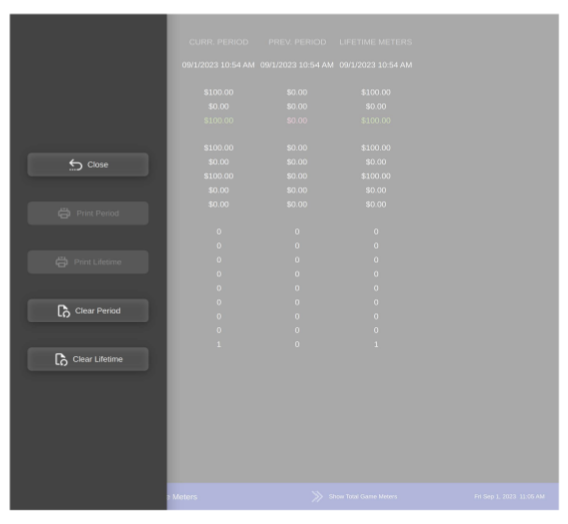
Tracks period (since last reset) and lifetime data. Pages include Machine Meters, Total Game Meters, and per-game meters (up to 9 depending on theme). A submenu offers Print Period, Print Lifetime, Clear Period (moves to Previous Period), and Clear Lifetime.
Machine Meters
- Accounting Started timestamp
- Total Money In/Out and Total Net
- Total Drop (credits issued for inserted money)
- Total Cancelled Credits (redeemed)
- Total Credits from Bills
- Total Ticket In/Out and counts
- Bill denomination counters ($1–$100)

Total & Per-Game Meters
- Current Credits, Coin In (total bets), Coin Out (wins)
- Payback % (Coin Out / Coin In), Hold % (100 − Payback)
- Games Played/Won/Lost, Hit Frequency (Won/Played)
- Machine Paid Paytable Win vs Progressive Win
- Total Won (typically equals Coin Out)

Game Recall
Stores up to 100 recent sessions (newest first): start/end times, credits before/after, total bet, total win, base/progressive/bonus/free-game wins, denomination, extra bet, lines played, and bet per line.

Machine Events
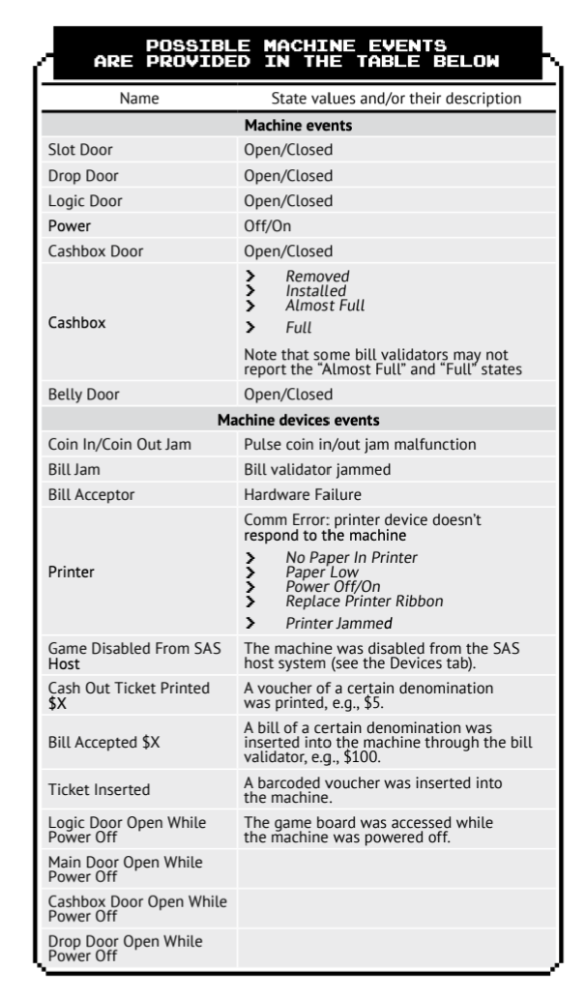
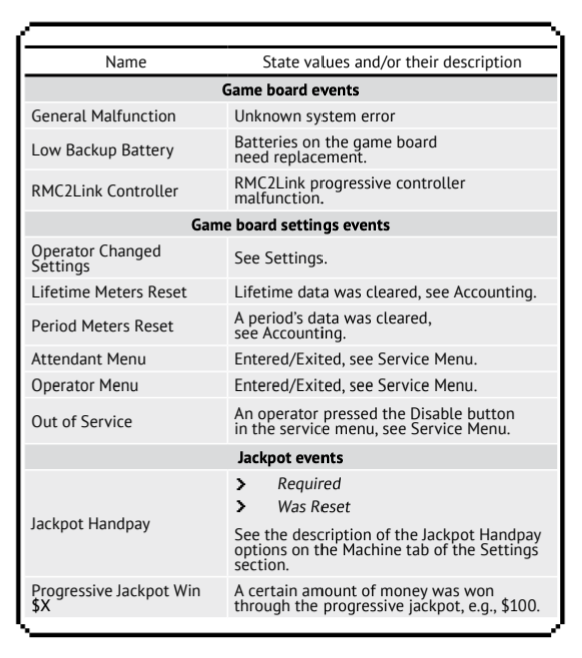
Events lists the last 100 time-stamped events: doors, power, jams, printer/bill states, SAS disables, tickets/bills accepted, handpay, progressive wins, operator changes, lifetime/period resets, enable/disable, etc.




Ticket In / Ticket Out
Both tabs show time, amount, and validation code. Ticket Out offers Reprint.
Settings – Machine Tab

- Terminal Number — unique per machine; printed on tickets; used by RKS.
- Payout — High / Medium (recommended) / Low / Very Low (affects Hold).
- Enable Reel Shutters — show shutter animation instead of spinning reels.
- Progressive Min Bet — default $1 (qualifies for jackpots).
- Default/Min/Max Bet — preset and limits.
- Use Hand Count + Hand Count Amount — per-hand redemption cap (e.g., GA compliance).
- Mute Screensaver — silence attraction mode.
- Clear Residual Credits — auto-clear non-redeemable amounts (respecting Cash Out Increment/Hand Count).
- Jackpot Handpay + Limit — lockup and attendant validation threshold (default $1200).
- Display Credit as — Money ($XX.XX) or Points (¢).
- Change Password — set/remove service PIN (store securely).

Settings – Devices Tab
Peripherals
- Bill Validator Model — Nothing / MEI (incl. Astro, Pyramid) / JCM / ICT / ITL (BV50).
- Printer Model — Nothing / EPIC 950 / GEN2-Paycheck / Pyramid / Custom 24xx / ICT GP-58 / Custom 558.
Note: Pyramid/Custom 24xx/ICT GP-58/Custom 558 don’t support barcodes. - Printer Baud Rate — usually 9600; ICT GP-58 needs 2400.
- Lock Up On Printer Error — EPIC950 and GEN2/Paycheck only.

SAS / Validation
- Primary SAS Address — 1–127 (0 disables); required by some jurisdictions (e.g., Georgia).
- SAS Ticket Number — sequential number printed on vouchers.
- Validation SAS Address — secondary SAS for TITO validation (0 disables).
- SAS TITO Validation — SecureEnhanced (recommended) or System (legacy). Reboot after changing.
Accounting / Limits
- Money In/Out Meter Scale — pulse per cents (1:1 … 1:100; default 1:100).
- Cash Out Increment — redemption step (default $0.01).
- Limit Max Cash Out + Amount — cap per ticket; excess remains as credits.
- Enable Pulse Coin In + Scale — JAMMA coin-in pulses (security-sensitive; avoid if possible).
- Bill-In Credit Limit — temporarily disables bill acceptance when credits exceed the limit.
Maintenance Actions
- Reset Machine to Factory Settings — clears game/accounting; record data first.
- Flip Screen — rotate vertical display 180°.
- Change Receipt Template — set Location/Address/Footer (not used with TITO; blocked by RKS).

Settings – Progressive Tab
Four progressive levels grow by 0.5% of each bet until won or capped: Mini, Minor, Major, Grand. Players must meet Progressive Min Bet (Machine tab) to qualify. Configure Min, Max, and adjust Current when needed (does not force a payout).
| Jackpot Level | Min | Max |
|---|---|---|
| Mini | $25 | $100 |
| Minor | $100 | $500 |
| Major | $500 | $1000 |
| Grand | $1800 | $5000 |


To link multiple machines to a common progressive, enable RMC2Link (local LAN only; not Internet-wide).
Settings – Games Tab
- Temporarily disable selected themes (remain listed but unselectable).
- Enable RMC2Link controller for shared progressive across machines.
- Optional secondary “Piano Game” skill settings (steps to win, extra timeout; default 0 = off).

Diagnostics
Verify cabinet switches (Pressed/Released), door sensors, board model, backup battery voltage (> 2.7V), SAS links (primary/validation), RMC2Link status, printer model, pulse coin-in status (test only), validator status, bill-in test (test only), RKS device model/status. Includes RKS Fledgling RAM Clear to reset its money-in/out meters (does not affect machine accounting).

Disable / Enable
Use Disable in the Service Menu to take the machine out of service; return and press Enable to restore operation.
Touch Screen
Calibrate by touching 4 on-screen points. If issues persist:
- Check cables; confirm touch moves the pointer in Service Menu.
- Try switching USB ↔ Serial (reboot after change).
- Re-calibrate in the Touch Screen section.
- Connect a USB mouse if buttons remain unclickable.
- Factory Reset (Devices tab) to clear stored calibration.
Get Help
- Update to the latest software (use online update check).
- Verify touch calibration (some bonus games require precise selection).
- If still unresolved, contact your distributor or email [email protected]. Include a screenshot of System Info (software version required for support).
Legal Disclaimer
Jenka Lab products are for amusement and entertainment purposes only. Operation may be regulated by local/state law. The purchaser is responsible for legal compliance in their jurisdiction. Jenka Lab LLC and/or Amusementonly.com is not responsible for devices used outside entertainment purposes or moved to jurisdictions restricting such equipment.